
MAG boxes are dedicated IPTV set-top boxes that offer a premium, plug-and-play IPTV experience directly on your television. If you own a MAG box or are considering buying one, this complete setup guide will walk you through everything from unboxing to watching your favorite channels with IPTV Flag.
🔥 Get IPTV Flag Free Trial — Watch 20,000+ Channels
Experience the best IPTV service with a 24-hour free trial. No credit card required.
What Is a MAG Box?
A MAG box (also called MAG device or STB — Set-Top Box) is a dedicated hardware device manufactured by Infomir. Unlike phones or Firesticks that run general-purpose operating systems, MAG boxes run a specialized Linux-based OS (STB OS) optimized specifically for IPTV streaming.
Popular MAG Box Models in 2026:
- MAG 322/323 — Entry-level, HD streaming, single-core CPU
- MAG 324/325 — Mid-range, improved performance
- MAG 351/352 — Premium, 4K UHD support, H.265 decoding
- MAG 420/421 — Latest flagship, 4K, Android-based
- MAG 524/525 — Ultra-premium 4K with Wi-Fi 6
What You Need to Get Started
- MAG box device
- HDMI cable (usually included)
- Power adapter
- Internet connection (Ethernet recommended, or Wi-Fi)
- Active IPTV subscription (use your IPTV Flag portal URL)
⭐ Why Choose IPTV Flag?
- 20,000+ Live TV Channels
- 40,000+ Movies & TV Shows on demand
- 4K, FHD & HD streams with anti-freeze technology
- Compatible with all devices — Firestick, Android, iOS, Smart TV
- 24/7 customer support
How to Set Up a MAG Box with IPTV Flag
Step 1: Physical Setup
- Connect your MAG box to your TV via the HDMI cable
- Connect to the internet via Ethernet cable (for best performance) or configure Wi-Fi
- Plug in the power adapter and turn on the MAG box
- Turn on your TV and select the correct HDMI input
Step 2: Initial Boot and Network Setup
- The MAG box will boot into the STB OS — this takes about 30-60 seconds
- If using Ethernet, the network should connect automatically
- For Wi-Fi: Navigate to Settings → Network, select your Wi-Fi network, and enter your password
- Verify internet connectivity is working
Step 3: Enter Your IPTV Flag Portal URL
This is the critical step. IPTV Flag provides a portal URL specifically for MAG boxes:
- Navigate to Settings → System Settings (or Settings → Servers depending on your MAG model)
- Find Portal URL or Portal 1
- Enter your IPTV Flag MAG portal URL (provided after subscribing at iptvflag.com)
- Leave Portal 2 empty unless you have a backup
- Press OK to save
- Go back and select Restart STB (or power cycle the device)
Step 4: MAC Address Registration
IPTV Flag uses your MAG box’s MAC address for authentication. You need to provide this when signing up:
- Go to Settings → System Information
- Note your MAC Address (format: AA:BB:CC:DD:EE:FF)
- Provide this MAC address to IPTV Flag when requesting your trial or subscription
Step 5: First Boot with IPTV Flag
After restart, your MAG box will connect to the IPTV Flag portal:
- The IPTV Flag interface will load within 30-60 seconds
- You’ll see the main menu with TV channels, Movies, Series, and more
- Navigate to TV to see your channel list
- Select any channel to start watching
Navigating the MAG Box IPTV Interface
Channel Navigation
- Arrow keys: Navigate between channels and menus
- OK button: Select a channel or confirm
- Back button: Return to previous screen
- OK during playback: Open channel list overlay
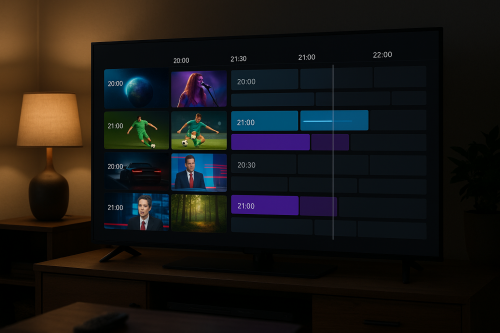
Accessing the EPG
- Press the TV Guide or EPG button on your remote
- Browse current and upcoming programs
- Navigate to any program and press OK to watch
Favorites
- While watching a channel, press the Info button
- Select Add to Favorites
- Access your favorites list from the main menu
Optimizing MAG Box Performance
Use Ethernet Instead of Wi-Fi
A wired Ethernet connection provides more stable and faster speeds than Wi-Fi. For 4K streaming, Ethernet is strongly recommended. If you must use Wi-Fi, ensure your router is in the same room or nearby.
Optimal Internet Speed Requirements
- SD channels: 5 Mbps minimum
- HD channels: 10-15 Mbps recommended
- FHD channels: 20 Mbps recommended
- 4K channels: 25-50 Mbps recommended
MAG Box Settings to Improve Performance
- Navigate to Settings and set Streaming Protocol to HLS for better compatibility
- Enable Hardware Decoding for 4K models
- Set Buffer Size to 3000-5000ms for smoother live TV
Troubleshooting Common MAG Box Issues
Portal Won’t Load / “Loading” Stuck
- Check your internet connection
- Verify the portal URL is entered correctly (no typos)
- Ensure your IPTV Flag subscription is active
- Try power cycling the MAG box (unplug and replug)
Channels Buffering or Freezing
- Switch from Wi-Fi to Ethernet
- Close other devices using your internet
- Try a channel in a lower quality tier first
- Contact IPTV Flag support to check server status
“MAC Address Not Authorized”
- Your MAC address isn’t registered with IPTV Flag
- Contact IPTV Flag support and provide your exact MAC address
- Find MAC address in Settings → System Information
No Picture / Black Screen
- Check HDMI connection is secure
- Try a different HDMI port on your TV
- Power cycle the MAG box
- Try a different channel to rule out single-stream issues
MAG Box vs Firestick vs Android Box: Which Is Best?
| Feature | MAG Box | Firestick | Android Box |
|---|---|---|---|
| Price | $60-$150 | $30-$50 | $40-$100 |
| Setup Difficulty | Easy (portal URL) | Easy-Medium | Medium |
| 4K Support | Select models | Yes (4K stick) | Yes |
| IPTV Optimized | Yes (dedicated) | Via apps | Via apps |
| Other Streaming | Limited | Netflix, Prime, etc. | Full Android apps |
Recommendation: MAG box is ideal if you want a dedicated IPTV device with a traditional set-top box feel. For a more versatile device, the Firestick or Android box offers access to other streaming services too.
Ready to Start Streaming on Your MAG Box?
Get your IPTV Flag subscription set up on your MAG box today. Start with the free 24-hour trial to verify everything works perfectly with your specific MAG model before committing to a paid plan.
🔥 Get IPTV Flag Free Trial — Watch 20,000+ Channels
Experience the best IPTV service with a 24-hour free trial. No credit card required.
IPTV Flag supports all MAG models including MAG 250, 254, 256, 322, 324, 351, 352, 420, 524, and more. Contact our support team if you need help with your specific model.