
How to Install IPTV on Android Phone & Tablet (2026 Guide)
Installing IPTV on your Android device is one of the easiest ways to access thousands of live TV channels, sports, movies, and on-demand content anywhere you go. Whether you have a Samsung Galaxy, a Google Pixel, or any other Android phone or tablet, this guide walks you through every method step by step.
By the end of this guide, you’ll have a fully working IPTV setup on your Android device, ready to stream over 20,000 channels from IPTV Flag.
What You Need Before You Start
- An Android phone or tablet running Android 5.0 or higher
- A stable internet connection (minimum 10 Mbps for HD, 25 Mbps for 4K)
- An IPTV subscription — or a free 24-hour trial from IPTV Flag
- Your M3U URL or Xtream Codes credentials from your provider
Method 1: Install IPTV via Google Play Store (Recommended)
The simplest method is to download an IPTV player directly from the Google Play Store. No special permissions are required.
Step-by-Step Instructions
- Unlock your Android device and open the Google Play Store.
- Tap the search bar at the top and type IPTV Smarters Pro.
- Select the app from the results and tap Install.
- Wait for the installation to complete, then tap Open.
- On the welcome screen, select Login with Xtream Codes API.
- Enter your IPTV provider’s server URL, username, and password.
- Tap Add User — your channels will load within seconds.
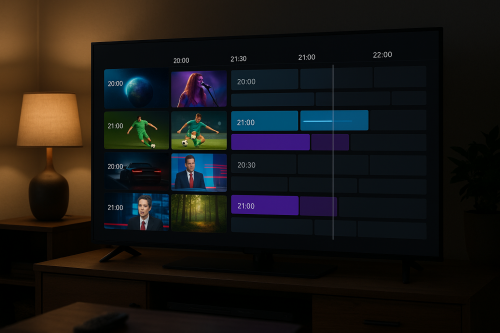
IPTV Smarters Pro is free to download and works seamlessly with all IPTV Flag subscriptions. It supports live TV, EPG programme guides, catch-up TV, and VOD libraries.
Method 2: Sideload an IPTV APK File
If the app you want isn’t available on the Play Store in your region, you can sideload it using an APK file. This is safe as long as you download from official sources.
Enable Unknown Sources
Before sideloading, you need to allow your device to install apps from outside the Play Store:
- Open Settings on your Android device.
- Go to Apps & Notifications (or Security on older devices).
- Tap Install unknown apps or Special app access.
- Select your browser (e.g. Chrome) and toggle on Allow from this source.
Download and Install the APK
- Open your browser and go to the official website of your chosen IPTV player (e.g. iptvsmarters.com).
- Download the APK file to your device.
- Open your Downloads folder using a file manager app.
- Tap the APK file and select Install.
- Once installed, open the app and enter your IPTV credentials.
Best IPTV Apps for Android in 2026
Not all IPTV players are created equal. Here are the top options to use on your Android device:
1. IPTV Smarters Pro
The most popular choice for Android users. Clean interface, supports Xtream Codes and M3U playlists, built-in EPG, parental controls, and multi-screen viewing. Free to install.
2. TiviMate
Premium feel with an advanced EPG grid, recording support, and beautiful UI. Ideal if you watch a lot of live TV. Free version available, premium unlocks all features.
3. GSE Smart IPTV
Highly flexible player that supports both M3U and Xtream Codes. Great for users who want fine-grained control over their streams. Free with optional pro upgrade.
4. Perfect Player
Lightweight and fast. Excellent for older Android devices or users who prefer a minimal interface. Fully free.
5. MX Player
Originally a video player, MX Player also handles M3U streams well and has outstanding codec support for all video formats.
How to Set Up IPTV Smarters Pro with M3U URL
If your IPTV provider gives you an M3U URL instead of Xtream Codes credentials, follow these steps in IPTV Smarters Pro:
- Open IPTV Smarters Pro and tap Add New User.
- Select Load your Playlist or File / URL.
- Give your playlist a name (e.g. “IPTV Flag”).
- Paste your M3U URL into the URL field.
- Tap Add User and wait for channels to load.
Troubleshooting Common Android IPTV Issues
Buffering or Freezing
Buffering is almost always a connection speed issue. Try these fixes:
- Switch from Wi-Fi to a wired connection using a USB-C Ethernet adapter
- Move closer to your router or use a Wi-Fi 6 router
- In your IPTV app settings, reduce stream quality to HD instead of 4K
- Enable a VPN if your ISP is throttling streaming traffic
App Crashing
- Clear the app cache: Settings → Apps → IPTV Smarters → Storage → Clear Cache
- Uninstall and reinstall the app
- Make sure your Android OS is updated to the latest version
Channels Not Loading
- Check your subscription is active with your IPTV provider
- Verify your M3U URL or Xtream Codes credentials are correct
- Try refreshing your playlist inside the app settings
Optimising Your Android IPTV Experience
A few tweaks will make a noticeable difference to your streaming quality:
- Use hardware decoding: In your IPTV app settings, enable hardware (HW) decoder instead of software for smoother 4K playback.
- Enable subtitles selectively: Only load subtitles for the channels you need — loading all subtitles increases memory usage.
- Close background apps: Free up RAM by closing other apps before starting a stream.
- Use a VPN for privacy: A VPN keeps your streaming activity private from your ISP.
Start Streaming with a Free Trial
Ready to experience 20,000+ live channels, 4K quality, and zero buffering? IPTV Flag offers a completely free 24-hour trial — no credit card required. Set up takes less than 2 minutes on any Android device.
Claim Your Free 24-Hour IPTV Trial →
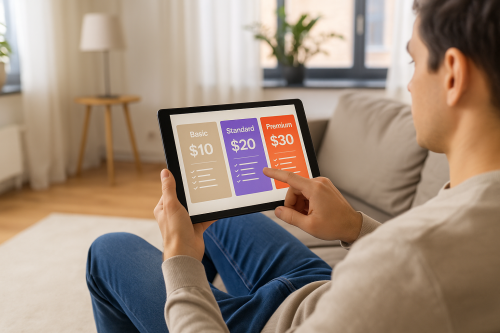
Once you’ve tested the service, choose from our flexible subscription plans starting from just $10/month. All plans include unlimited connections, 24/7 support, and access to our full channel library.