
How to Watch IPTV on Kodi 2026 — Complete Setup Guide
Kodi is one of the most powerful open-source media players available, and when combined with an IPTV subscription, it becomes a complete home entertainment system. This guide shows you exactly how to set up IPTV on Kodi in 2026 — from installing the PVR addon to loading your M3U playlist and configuring the Electronic Programme Guide (EPG).
What Is Kodi and Why Use It for IPTV?
Kodi is a free, open-source media centre application available on Windows, Mac, Linux, Android, iOS, Raspberry Pi, and many smart TV platforms. Its PVR (Personal Video Recorder) functionality makes it ideal for IPTV streaming — you get a traditional TV guide interface, channel favourites, catch-up TV, and recording capabilities all in one place.
The key add-on you’ll need is the PVR IPTV Simple Client, which is included in Kodi’s official repository and requires no external sources.
Requirements
- Kodi 19 (Matrix) or newer — Kodi 21 (Omega) recommended
- An IPTV subscription with an M3U playlist URL
- Stable internet connection (15+ Mbps recommended)
Step 1: Install PVR IPTV Simple Client
- Open Kodi and click the Settings gear icon in the top-left corner.
- Select Add-ons from the settings menu.
- Click Install from repository.
- Choose Kodi Add-on repository (the official one).
- Navigate to PVR clients.
- Scroll down and select PVR IPTV Simple Client.
- Click Install and confirm any dependency prompts by clicking OK.
- Wait for the installation confirmation notification in the top-right corner.
Step 2: Configure the PVR IPTV Simple Client with Your M3U URL
Once installed, you need to connect it to your IPTV provider’s playlist:
- Go back to Add-ons → PVR clients and select PVR IPTV Simple Client.
- Click Configure.
- In the General tab, change M3U Playlist Location to Remote path (internet address).
- Paste your M3U URL into the M3U playlist URL field.
- Click OK to save.
- Kodi will prompt you to restart — click Yes.
After restarting, your live TV channels will appear under TV → Channels in the Kodi main menu.
Step 3: Add an EPG (Electronic Programme Guide)
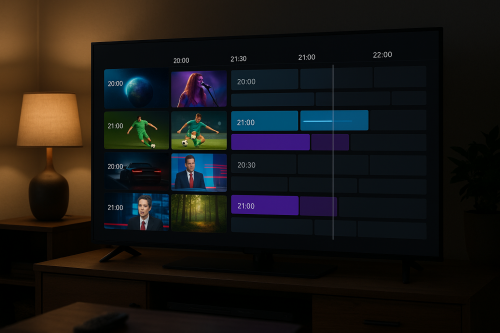
An EPG shows you what’s on each channel now and in the coming days — essential for finding content quickly.
- Go back into the PVR IPTV Simple Client → Configure settings.
- Click the EPG Settings tab.
- Set the XMLTV URL source to Remote path.
- Enter the XMLTV EPG URL provided by your IPTV service.
- Click OK and restart Kodi.
Most premium IPTV providers, including IPTV Flag, provide a dedicated EPG URL alongside your M3U link.
Step 4: Browse Your Channels
Once Kodi has loaded your channels:
- Go to TV from the main Kodi home screen.
- Choose Channels to browse the full list.
- Select Guide to view the EPG grid.
- Press C (keyboard) or Menu button (remote) on any channel to add it to favourites.
Best Kodi Skins for IPTV Watching
The default Kodi Estuary skin works well, but these alternatives give a more TV-friendly experience:
Aeon Nox SiLVO
A sleek, dark-themed skin with large thumbnails and excellent EPG presentation. Available in the Kodi repository.
Arctic Zephyr 2
Modern flat design inspired by streaming service interfaces. Very intuitive for first-time users.
Confluence (Legacy)
The classic Kodi look — simple and fast. Best for older or lower-powered hardware.
Kodi IPTV on Different Devices
Windows & Mac
Install Kodi from kodi.tv, follow the steps above. Windows users can also use a wireless keyboard/remote for the full TV experience.
Android & Android TV
Download Kodi from the Google Play Store or sideload the APK. Works on phones, tablets, Android TV boxes, and Shield TV.
Amazon Firestick
Kodi can be sideloaded on Firestick using the Downloader app. Enable Developer Options → Apps from Unknown Sources first.
Raspberry Pi
LibreELEC or OSMC — both are Raspberry Pi distributions with Kodi built in. An excellent option for a low-cost, always-on IPTV player.
Troubleshooting Kodi IPTV Problems
Channels Not Showing
- Check your M3U URL is correct and accessible (paste it in a browser to verify)
- Force-reload the playlist: Add-ons → PVR IPTV Simple Client → Configure → force-update
- Check Kodi’s log file for specific error messages
Buffering Issues
- Increase Kodi’s buffer size via advancedsettings.xml (set
buffermodeto 1 andreadbufferfactorto 4.0) - Use a wired Ethernet connection instead of Wi-Fi
- Lower stream resolution in the Kodi video settings
EPG Not Loading
- Verify your XMLTV URL is correct
- Try refreshing EPG data manually: TV → Guide → Refresh
- Check that your IPTV provider supports XMLTV EPG format
Get Started with IPTV Flag Today
IPTV Flag provides a fully compatible M3U playlist and XMLTV EPG link with every subscription. Whether you’re setting up Kodi or any other IPTV player, you’ll be streaming in minutes.
Try it completely free for 24 hours — no credit card, no commitment. Start your free IPTV trial now →