
TiviMate IPTV Setup Guide 2026 — Install, Configure & Optimise
TiviMate is widely considered the best IPTV player for Android TV and Firestick users. Its EPG grid, smooth navigation, and premium features make it the go-to choice for anyone serious about live TV. This guide covers everything from installation to advanced optimisation in 2026.
Why TiviMate Is the Best IPTV Player
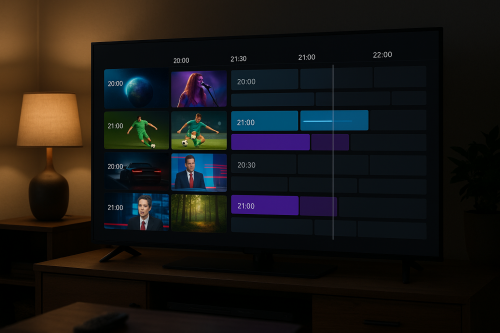
- Best EPG grid — beautiful, colour-coded programme guide that feels like a real TV
- Favourites management — create custom channel lists and reorder them freely
- Multi-screen view — watch up to 4 channels simultaneously (premium)
- DVR recording — record any channel to USB storage (premium)
- Catch-up TV — replay missed programmes up to 7 days back
- Smooth switching — channel changes in under 2 seconds
Compatible Devices
- Amazon Firestick (all models including 4K and Lite)
- Amazon Fire TV Cube
- Android TV boxes (Nvidia Shield, Xiaomi Mi Box, etc.)
- Google TV devices
- Android phones and tablets (via Google Play Store)
How to Install TiviMate on Firestick
TiviMate is not available on the Amazon App Store, so you need to sideload it using the Downloader app.
Step 1: Enable App Sideloading
- On your Firestick home screen, go to Settings.
- Select My Fire TV → Developer Options.
- Turn on Install Unknown Apps.
- Find Downloader in the list and set it to ON.
Step 2: Install Downloader
- Return to the Firestick home screen.
- Go to Find → Search and type Downloader.
- Install the Downloader app from Orange Tools.
Step 3: Download and Install TiviMate
- Open Downloader.
- In the URL field, enter the official TiviMate APK download link.
- Click Go — the APK will download automatically.
- When prompted, click Install.
- After installation, click Done (not Open — configure first).
How to Install TiviMate on Android TV
Android TV has access to the Google Play Store, making this much simpler:
- Open the Google Play Store on your Android TV.
- Search for TiviMate IPTV Player.
- Click Install and wait for the download to complete.
- Open TiviMate once installed.
How to Add Your IPTV Playlist to TiviMate
TiviMate supports both M3U URLs and Xtream Codes login. We recommend Xtream Codes for the best experience:
Via Xtream Codes (Recommended)
- Open TiviMate and select Add Playlist.
- Choose Xtream Codes Login and tap Next.
- Enter your IPTV provider’s Server URL, Username, and Password.
- If you want VOD content, enable Include VOD.
- Tap Next — TiviMate will fetch your channel list.
- Give your playlist a name (e.g. “IPTV Flag”) and tap Add.
Via M3U URL
- Select Add Playlist → M3U Playlist.
- Paste your M3U URL into the field.
- Tap Next → Add.
Configuring TiviMate for the Best Experience
Set Up EPG
- Go to Settings → Playlist & EPG.
- Select your playlist and tap EPG Sources.
- Enter the XMLTV EPG URL from your provider.
- Set EPG Update Interval to every 24 hours.
Organise Your Favourites
- Navigate to any channel in the channel list.
- Long-press the channel (or press Menu on your remote).
- Select Add to Favourites.
- Create multiple favourites groups: Sports, News, Movies, etc.
Video Playback Settings
- Player type: Use ExoPlayer for most streams; switch to VLC for channels that buffer with ExoPlayer
- Hardware acceleration: Enable for 4K/HDR streams to reduce CPU usage
- Aspect ratio: Set to Auto for best compatibility across channels
TiviMate Premium vs Free
TiviMate has a free version and a paid premium version. Here’s what you get with each:
- Free: Live TV, EPG, M3U/Xtream Codes support, basic favourites
- Premium (~$4.99/year): Multi-screen view, DVR recording, auto-update playlists, panel customisation, catch-up TV, unlimited playlists
Premium is worth every penny if you watch TV regularly.
Troubleshooting TiviMate
Channels Not Loading
- Go to Settings → Playlist → force-refresh your playlist
- Check your credentials are correct by testing them in a browser
- Ensure your subscription is still active
EPG Showing Wrong Times
- Go to Settings → General → set your correct timezone
- Force-refresh EPG data
TiviMate Crashing
- Clear app cache: Settings → Applications → TiviMate → Clear Cache
- Ensure your Firestick/Android TV has at least 1GB RAM free
- Update to the latest TiviMate version
Start Streaming with IPTV Flag
IPTV Flag provides Xtream Codes credentials that work perfectly with TiviMate’s setup wizard. In under 5 minutes you’ll have 20,000+ channels loaded with a full 7-day EPG.