
How to Install IPTV on Any Smart TV 2026 — All Brands
Installing IPTV on a Smart TV lets you watch 20,000+ live channels, movies, and sports directly on your biggest screen — no laptop, no extra device, no complicated setup. This guide covers every major Smart TV brand and operating system in 2026.
Which Smart TV OS Do You Have?
The installation process depends on which operating system your Smart TV runs:
- Samsung — Tizen OS
- LG — webOS
- Sony, Philips, TCL — Android TV or Google TV
- Amazon Fire TV Edition — Fire OS
- Hisense, Toshiba, Sharp — Android TV, VIDAA, or Roku TV depending on model
Check your TV’s Settings → System → About to confirm your OS version.
Method 1: Android TV & Google TV (Sony, Philips, TCL, Hisense)
Android TV and Google TV have access to the Google Play Store, making this the easiest installation method.
- Press the Home button on your remote.
- Navigate to the Apps or Google Play Store section.
- Search for IPTV Smarters, TiviMate, or GSE Smart IPTV.
- Select your preferred app and click Install.
- Open the app once installed.
- Choose Login with Xtream Codes or Add M3U URL.
- Enter your IPTV credentials and tap Add.
Your channels will load within 30 seconds. Navigate using your TV remote.
If Your App Isn’t in the Play Store
Some IPTV apps may not be available in all regions. Enable sideloading:
- Go to Settings → Device Preferences → Security & Restrictions.
- Enable Unknown Sources.
- Use a file manager app to install APKs downloaded via USB drive.
Method 2: Samsung Smart TV (Tizen OS)
Samsung TVs run Tizen OS which doesn’t support Android apps. You have two options:
Option A: Samsung Smart IPTV App
- Open the Samsung Smart Hub.
- Search for Smart IPTV in the app store.
- Install and open the app.
- On your phone or PC, visit the Smart IPTV activation page and enter your TV’s MAC address.
- Upload your M3U playlist URL on the Smart IPTV website.
- Restart the app on your TV — channels will appear.
Note: Smart IPTV requires a one-time activation fee of around €5.49.
Option B: SS IPTV (Free)
- Search for SS IPTV in the Samsung App Store.
- Install and open it.
- Go to the SS IPTV website on your phone and upload your M3U URL using your TV’s unique code.
- Channels load instantly — completely free.
Method 3: LG Smart TV (webOS)
LG TVs use webOS, which has its own app store (LG Content Store). IPTV options are limited, but there are good workarounds:
Option A: SS IPTV for LG
- Open the LG Content Store on your TV.
- Search for SS IPTV.
- Install and follow the same steps as Samsung (enter your code on the SS IPTV website).
Option B: Use Chromecast or AirPlay
If SS IPTV isn’t available in your region, cast from your phone or tablet using the IPTV Smarters app’s built-in cast feature.
Method 4: Amazon Fire TV Edition (Fire OS)
Hisense, Toshiba, and other brands sell Smart TVs with Fire OS built in. These work identically to an Amazon Firestick:
- Go to Settings → My Fire TV → Developer Options.
- Enable Apps from Unknown Sources.
- Install the Downloader app from the Amazon App Store.
- Open Downloader and enter the URL of your chosen IPTV app’s APK file.
- Install and configure with your IPTV credentials.
Best IPTV Apps for Smart TVs
IPTV Smarters Pro
Available on Android TV, Google TV, and via sideloading on Fire OS. Best all-round app for Smart TV use — full EPG, VOD, and catch-up support.
TiviMate
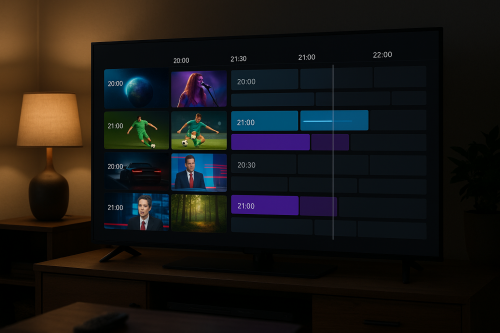
Available for Android TV and Google TV from the Play Store. The best EPG grid of any IPTV player — highly recommended for heavy live TV viewers.
SS IPTV
Best option for Samsung and LG TVs. Free to use, simple setup via the website, and reliable channel loading.
Smart IPTV
Available for Samsung and LG. Small one-time fee but excellent stability and a wide device support list.
Tips for the Best Smart TV IPTV Experience
- Use wired Ethernet — connect your Smart TV to your router via a LAN cable for rock-solid buffering-free streaming
- Restart your router weekly — clears DNS cache and improves connection quality
- Choose the right server — your IPTV provider may have multiple servers; pick the closest to your location
- Clear app cache monthly — Settings → Apps → [IPTV App] → Clear Cache
Start with a Free Trial
IPTV Flag is compatible with every Smart TV setup described in this guide. Our M3U playlists and Xtream Codes credentials work with SS IPTV, Smart IPTV, IPTV Smarters, and TiviMate on all brands.